

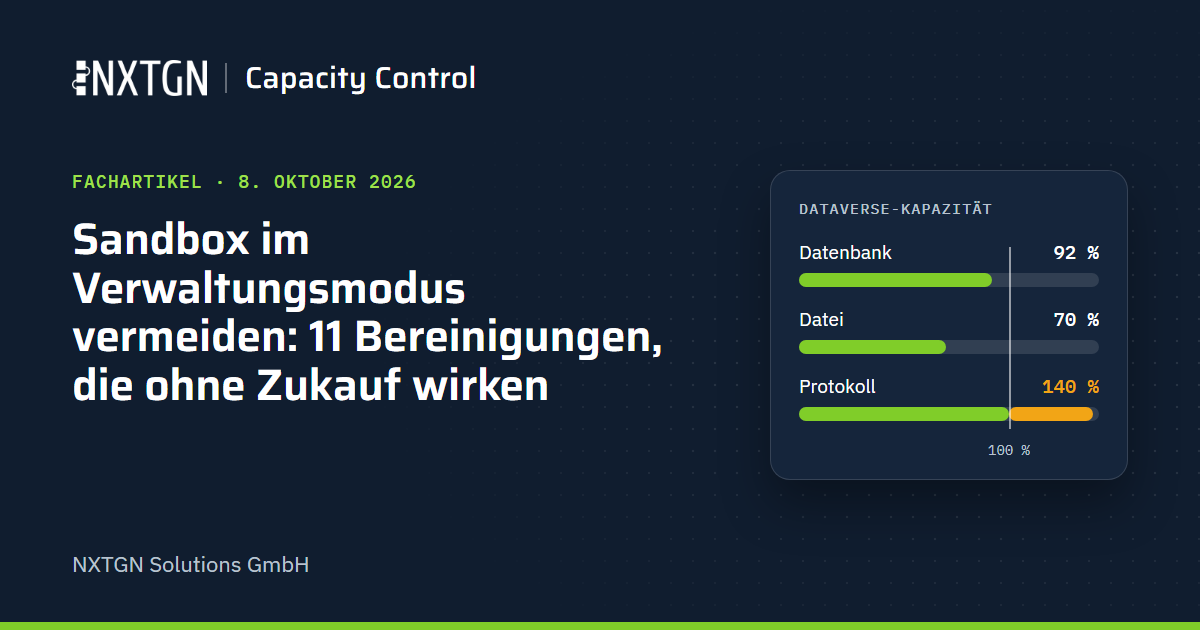
None of these eleven measures requires buying more capacity; you can start with group A today. The capacity report can take up to 72 hours to show the effect; Microsoft evaluates storage approximately every 24 hours. Do not schedule cleanup for the last few days before a deadline. We list only measures that Microsoft documents or that NXTGN Capacity Control performs, each with its risks and effort.
Three rules before you start
- Target the right storage type. A database shortfall can only be reduced by cleaning up the database or buying capacity. File and log storage, however, borrow spare capacity: log from database, and file from log and database. Deleting attachments therefore also frees borrowed database capacity for log storage.
- Account for the recycle bin. If Keep deleted Dataverse records is enabled, deleted records continue to count towards capacity for up to 90 days. For system data, consider the Permanent deletion option in a bulk deletion job, or
CanRecoverDeletedRecords = falsein the Web API. - Test before deleting. Microsoft recommends developing deletion jobs in a sandbox and reviewing the matching records first. Anything deleted by a bulk deletion job stays deleted, even if the job fails.
The measures at a glance
| # | Measure | Storage type | Risk | Effort | With NXTGN Capacity Control |
|---|---|---|---|---|---|
| 1 | Lower the plug-in logging level | Log | low | minutes | view and change the setting |
| 2 | Delete completed system jobs | Database, partly file | low | minutes | check deletion service, template |
| 3 | Import history, duplicate detection jobs, trace messages | Database | low | minutes | templates for import history and trace messages |
| 4 | Cancel stuck workflow jobs | Database | medium | hours | by process, after approval |
| 5 | Archive audit logs, then delete | Log | high without an archive, low with a verified archive | hours to days | archive with verification |
| 6 | Delete Copilot interactions | Database | medium | minutes | template, only on explicit request |
| 7 | Delete unused sandboxes | All | high if still needed | minutes plus coordination | shows usage per environment |
| 8 | Reduce a sandbox after a full copy | All | medium to high | hours | not included |
| 9 | Empty the recycle bin | All | high | minutes | not included |
| 10 | Delete attachments | File | high | hours | archive with verification, approval by a second person |
| 11 | Reduce the Dataverse search index | Database | medium | hours | not included |
Group A: low risk, no business decision needed
1. Lower the plug-in logging level
If Enable logging to plug-in trace log is set to All, every plug-in execution writes an entry to PlugInTraceLogBase. A daily job deletes entries older than 24 hours, so one day’s volume remains in log storage at all times. Microsoft recommends Off for production environments.
- Where: Settings › Administration › System Settings › “Customization” tab, or through the Web API in
organization.plugintracelogsetting(0 = Off, 1 = Exception, 2 = All). - Risk: low. Temporarily switch to Exception when investigating errors.
- Effort: minutes. No new entries are created, and Dataverse removes existing entries after 24 hours.
2. Delete completed system jobs
Every workflow, plug-in and background job leaves a system job in AsyncOperationBase; workflows also leave entries in WorkflowLogBase. The Dataverse deletion service removes completed system jobs after fixed periods: by default, successful jobs after 30 days, and failed or cancelled jobs after 60 days.
- Where: Power Platform admin center › Manage › Environments › Environment › Settings › Auditing and logs › Set retention policy for system job deletions (preview). Alternatively, run a bulk deletion job on system jobs with the status “Completed”. For asynchronous workflows, the Automatically delete completed workflow jobs option helps.
- Risk: low. You lose the history of which job ran when; the workflow results remain.
- Effort: minutes. For large volumes, Dataverse prioritises new, one-off deletion jobs targeting system jobs (up to five such jobs).
3. Import history, duplicate detection jobs and trace messages
Microsoft describes all three as eligible for cleanup: completed data imports, duplicate detection job instances (each instance stores a copy of the duplicates found), and server-side synchronisation trace messages in TraceLogBase, displayed on the Alerts tab of the mailbox and email server profile.
- Where: Settings › Data Management › Bulk Record Deletion (system job type “Import”, successful status, older than one month), or Settings › Data Management › Duplicate Detection Jobs.
- Risk: low. A deleted import can no longer be rolled back.
- Effort: minutes.
With NXTGN Capacity Control (group A): the app displays and changes the logging level, checks the deletion service’s status and retention periods, and identifies custom deletion jobs that duplicate the service’s work. It provides templates for completed system jobs (only when the deletion service is disabled), import history (default: older than 90 days) and trace messages (default: older than 30 days), with previews, approval, a canary run on the oldest segment and a log.
Group B: effective, but requires review
4. Cancel stuck workflow jobs
Waiting workflow jobs remain until someone cancels them; the deletion service covers only completed jobs. Microsoft recommends assessing each case because some workflows intentionally wait.
- Risk: medium. A cancelled job belonging to an active workflow will not execute its remaining steps.
- Effort: a business review of each workflow.
- With NXTGN Capacity Control: the app groups jobs by process with the workflow’s status (active, disabled, deleted) and, after your approval, cancels them in batches within each group.
5. Archive audit logs, then delete
In the admin center, you can delete audit logs by table, by access logs or up to a specified date (Manage › Environments › Environment › Auditing › “Delete audit logs”). Microsoft gives a guideline of around 100 million entries per day.
- Risk: high without an archive, because deleted audit logs cannot be recovered; low with a verified archive.
- Effort: deletion can be initiated within minutes; the job runs in the background. An archive requires setup and export time.
- With NXTGN Capacity Control: export by table and month to your Azure Blob Storage, verification of each audit ID, and removal according to your rule. Read more: Reduce audit storage safely.
6. Delete Copilot interactions
The msdyn_copilotinteraction table stores interactions with Copilot features. Microsoft describes cleaning it up through bulk deletion or long-term retention.
- Risk: medium. Entries may be needed for analysis and compliance. Discuss this with the business department and data protection team beforehand.
- Effort: minutes.
- With NXTGN Capacity Control: a template with a minimum age (90 days by default), only on explicit request.
Group C: substantial effect, requires a decision
7. Delete unused sandboxes
Deleting an environment frees all of its usage; Microsoft explicitly lists this as a measure. A deleted sandbox can be recovered for only 7 days and, depending on the environment type, only with spare capacity; recovery is blocked in stage 1.
- Risk: high if the sandbox is still needed.
- Effort: minutes, plus coordination with the teams that use it.
8. Reduce a sandbox after a full copy
A copy using the Everything option includes all production data. For sandboxes, the Web API action BulkDelete offers a fast deletion mode (RunJobForSandbox) that Microsoft describes for large data volumes after copying production; it bypasses plug-ins and workflows and deletes permanently. For development and feasibility testing, Microsoft recommends the Customizations and schemas only copy, which excludes audit logs, activities and attachments, among other things. Note that copying is blocked in stage 1.
- Risk: medium to high, because the deletion mode is permanent and does not execute business logic.
- Effort: hours for the query, test run and Web API call.
9. Empty the recycle bin
Delete all records under Settings › Data Management › Deleted Records permanently removes all retained deleted records in the environment.
- Risk: high. Nothing can be recovered afterwards, and the action affects every table.
- Effort: minutes.
10. Delete attachments
Microsoft describes deleting email and note attachments through Advanced Find or bulk deletion, for example all attachments larger than 1 MB.
- Risk: high. The attachments are then missing from Dynamics 365; copies stored in Outlook remain.
- Effort: hours for the criteria and coordination.
- With NXTGN Capacity Control: the app shows counts and sizes. It archives notes with files to your Azure Blob Storage according to a plan, then removes them from Dynamics; email attachments are archived with their emails. Each plan requires approval by a second person, and before each batch the app checks that every row has been archived.
11. Reduce the Dataverse search index
The Dataverse search index appears as the DataverseSearch table and counts towards database capacity. Microsoft describes removing unnecessary tables and columns from search.
- Risk: medium. Search and Copilot features will find less information. Microsoft explicitly advises against disabling search entirely.
- Effort: hours to agree which columns should remain searchable.
Measures that do not help
- Reallocating capacity between environments: according to Microsoft, this changes neither the tenant’s entitlement nor a shortfall.
- Taking a sandbox out of administration mode: temporarily restores access, but does not stop the deadline.
- Deleting data in trial, developer or Teams environments: these environments do not count towards the tenant’s usage.
When cleanup is not enough
- Pay-as-you-go for individual sandboxes: exempts the linked sandbox from the stages. Without allocated capacity, only 1 GB of database and 1 GB of file storage are free per environment; log storage is charged from the first GB (list price according to Microsoft Learn: USD 12 per GB per month).
- Capacity extension: 25 % of usage for a maximum of 45 days, available from 80 % usage, at most three times in 365 days. Restrictions apply again afterwards.
- Buy additional capacity of the storage type that is actually missing.
Recommended order
Start with group A: it takes minutes and requires no business decision. In parallel, establish which sandboxes are still needed and how long you must retain audit evidence. Implement group C only with approval from the responsible owners.
Sources
- Microsoft Learn: Dataverse capacity-based storage details (opens in a new tab): stages, offsets, leaving administration mode, FAQs
- Microsoft Learn: Free up storage space (opens in a new tab): methods for database, file and log storage, delay of up to 72 hours
- Microsoft Learn: Delete completed system jobs and process log (opens in a new tab): deletion service, default retention periods, priority jobs, plug-in trace logs
- Microsoft Learn: Tracing and logging (opens in a new tab): deletion after 24 hours, logging levels
- Microsoft Learn: Delete data in bulk (opens in a new tab):
CanRecoverDeletedRecords,RunJobForSandbox, no rollback - Microsoft Learn: Restore deleted Microsoft Dataverse table records (opens in a new tab): deleted records count towards capacity
- Microsoft Learn: Manage data with governance policies in Dataverse (opens in a new tab): recommendations, Permanent deletion
- Microsoft Learn: Copy an environment (opens in a new tab): copy types and excluded tables
- Microsoft Learn: Recover environment (opens in a new tab): 7 days, spare capacity required
- Microsoft Learn: Overview of the msdyn_copilotinteraction table (opens in a new tab)
- Microsoft Learn: Manage Dataverse auditing (opens in a new tab): deleting audit logs, guideline of 100 million entries per day
- Microsoft Learn: Pay-as-you-go meters (opens in a new tab)
- Microsoft Learn: Administration mode (opens in a new tab)