

What is held in log storage
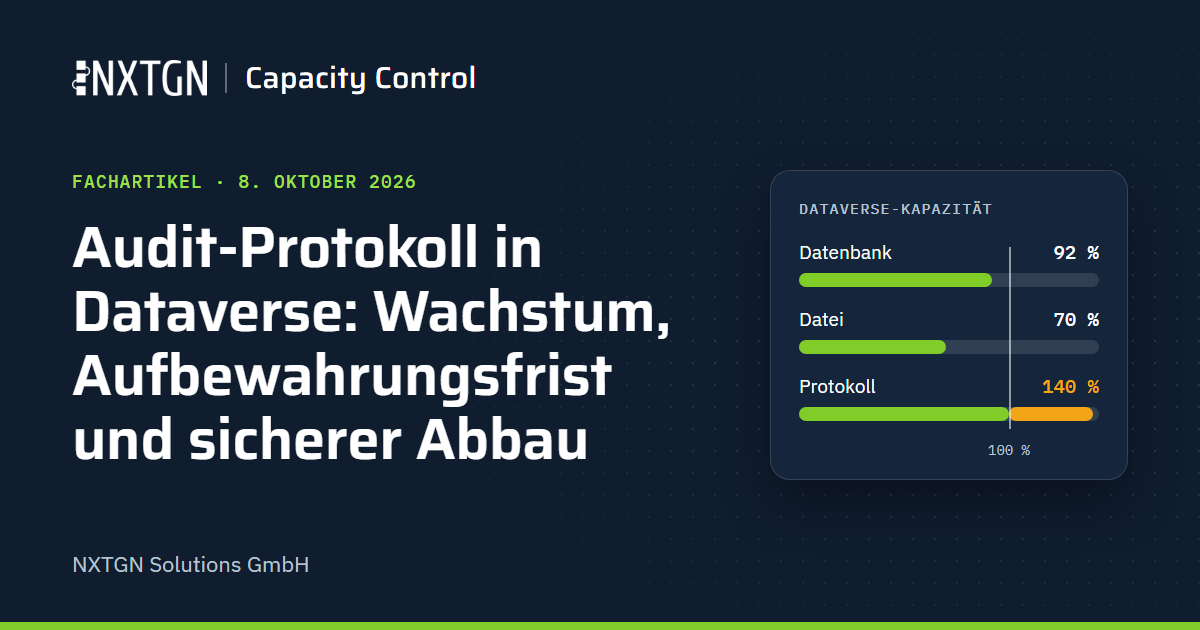
Microsoft counts three things towards log capacity: the audit table AuditBase, plug-in trace logs in PlugInTraceLogBase and elastic tables. A daily Dataverse job removes plug-in trace logs after 24 hours; audit logs and elastic tables are the main sources of growth over years. If the plug-in logging level in production is set to All, new entries are still generated continuously; Microsoft recommends Off there.
Why the audit log grows
- Every value change in an audited column creates an entry. Creating, updating and deleting records, sharing, many-to-many relationships and changes to security roles are logged. An update creates an entry only if the value actually changes.
- Many tables enabled at once. The “Common Entities in Dynamics 365 Apps” option (Power Platform admin center › Security › Compliance › Auditing) enables auditing for 40 standard tables, including account, contact, lead, opportunity, quote, order, invoice and case.
- Integrations and automation. Interfaces, flows and plug-ins that regularly set fields create an entry for every value change without human involvement. An example is a nightly synchronisation that transfers status or date fields from an ERP system.
- Access logging. When “Log access” is enabled, Dataverse logs user sign-ins. The
useraccessauditingintervalcolumn sets the interval; the default is 4 hours. - No deletion deadline. If retention is set to “Forever”, Dataverse does not delete any entries. The log then grows with every month of operation.
How to measure usage
- Total volume: Power Platform admin center › Licensing › Dataverse › Environment › Consumption per table, storage type Log. Auditing appears there as a single table:
AuditBase. - Share by table: the Web API action
GetAuditStorageDetailsreturns the audit size for each table; Microsoft describes the call in “Recover database space by deleting audit logs”. The calculation runs asynchronously: if you initially receive only a status, call the action again later.
The retention period: auditretentionperiodv2
The auditretentionperiodv2 column in the organization table specifies, in days, how long Dataverse retains audit entries. The value -1 means “forever”; any other value is the retention period in days.
- Read it:
GET Organisation URL/api/data/v9.2/organizations?$select=auditretentionperiodv2 - Set it: Power Platform admin center › Manage › Environments › Environment › Settings › Auditing and logs › Audit settings › “Retain these logs for”. Alternatively: Security › Compliance › “Auditing” tile.
Three important details about retention:
- Each entry receives the retention period in effect when it is created. A change in the environment settings affects only new entries. Microsoft’s example: if retention is extended from 30 to 90 days, Dataverse still deletes older entries after 30 days.
- Through Security › Compliance, retention can also be applied to existing entries. A shorter period then applies to the existing history too.
- Microsoft’s documentation is inconsistent about the default. The administrator page says “Forever”, while the developer page says 30 days. Read the value in your environment rather than assuming it.
The risk of an overly short retention period
A short retention period reliably reduces log storage while continuously deleting history. Dataverse removes each entry as soon as it exceeds the period, without confirmation and without a recycle bin. Microsoft states that deleted audit logs cannot be recovered.
You then lose the evidence of who changed a price, an address or a security role, and who deleted a record. Internal audit, external auditors or customers may ask these questions years later.
Set retention together with your audit and data protection teams. The deciding factor is the longest period for which you must be able to demonstrate changes, not the storage available. If you archive, you need a second rule: retention in Dataverse must exceed the interval between exports. Otherwise, entries disappear before they reach the archive.
Archive rather than delete
In its storage management guidance, Microsoft recommends retaining audit logs in your own storage (“Audit logs: Retain it in your own storage”). These are the available approaches:
| Approach | What it does | Limitations |
|---|---|---|
| Dataverse long-term retention | keeps inactive business data read-only in Dataverse | does not support audit tables |
| Azure Synapse Link for Dataverse | replicates the audit table to your Azure storage | only with the Delta Lake profile, which new customers can no longer use from 15 October 2026 (existing customers until December 2027); audit tables with more than 100 million entries are not synchronised; a Synapse workspace and Spark pool are required; does not delete anything in Dataverse |
| Custom scripts using the Web API or SDK | exports according to your requirements; Microsoft points to this because the admin center does not offer an export | you are responsible for completeness, safe deletion and readability |
| NXTGN Capacity Control | exports each completed month, by table, to your Azure Blob Storage, verifies every audit ID in the archive and only then removes entries according to your rule | the archive currently supports Azure Blob Storage only |
With NXTGN Capacity Control, archived entries remain readable in the app and in the record’s history, even after the contract ends.
Five steps to reduce audit storage safely
- Measure. Check log usage in the admin center, each table’s share through
GetAuditStorageDetails, and the configured retention period. - Check incoming volume. Disable auditing where no evidence is needed, for example on technical columns that an interface constantly rewrites (Power Apps › Tables › Table › Columns › Column › Advanced options › “Enable auditing”). Discuss access logging with your data protection team and works council.
- Set retention. Do this together with audit and data protection. If you archive, retention must be longer than the interval between exports.
- Archive, verify, then delete. Export older months and check completeness. Only then delete them in Dataverse, for example in the admin center under Manage › Environments › Environment › Auditing › “Delete audit logs”. Note that “By table” deletes all entries for the selected tables, while “All logs up to and including the selected date” deletes entries across all tables up to that day. Microsoft gives a guideline of around 100 million deleted entries per day; the capacity report shows the effect within up to 72 hours.
- Repeat monthly. Each month adds another month of data. A fixed schedule keeps the log small. NXTGN Capacity Control carries out this work according to your rule.
Sources
- Microsoft Learn: Manage Dataverse auditing (opens in a new tab): retention, deletion options, guideline of 100 million entries per day
- Microsoft Learn: Configure auditing (opens in a new tab):
auditretentionperiodv2,useraccessauditinginterval - Microsoft Learn: Recover database space by deleting audit logs (opens in a new tab):
GetAuditStorageDetails, deleted logs cannot be recovered - Microsoft Learn: Dataverse capacity-based storage details (opens in a new tab): tables counted towards log capacity, offsets between storage types
- Microsoft Learn: Tracing and logging (opens in a new tab) and Delete completed system jobs and process log (opens in a new tab): plug-in trace logs removed after 24 hours, “Off” recommended in production
- Microsoft Learn: Storage management in Dataverse and finance and operations apps (opens in a new tab): “Audit logs: Retain it in your own storage”
- Microsoft Learn: Dataverse long term data retention overview (opens in a new tab): audit tables are not supported
- Microsoft Learn: Azure Synapse Link for Dataverse FAQ (opens in a new tab), Export Dataverse data in Delta Lake format (opens in a new tab) and Access audit data using Azure Synapse Link (opens in a new tab)