
What is changing
Until now, exceeding capacity generally resulted in banners and emails. Certain operations were blocked, such as copying an environment when less than 1 GB was available in the required storage type. Storage validation adds defined stages and deadlines.
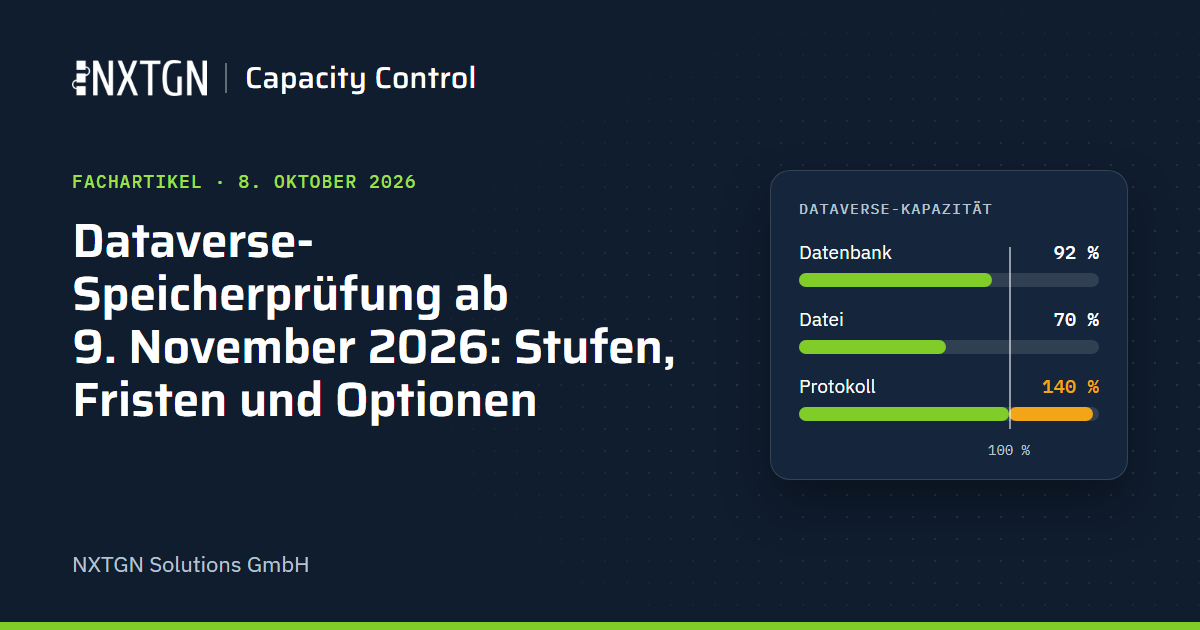
What matters is effective usage. Dataverse distinguishes three storage types: database, file and log. Before Microsoft determines that capacity has been exceeded, it offsets spare capacity, but only in one direction: spare database capacity covers log and file storage, and spare log capacity covers file storage. A database shortfall can therefore only be covered by database capacity.
Stages and deadlines
| Stage | Starts | Consequences |
|---|---|---|
| Early notifications | effective usage above 85 % | information and warning messages |
| Stage 1: Restricted | first day above 100 % effective usage (“T0”) | creating, copying and restoring environments are blocked, including recovering deleted environments |
| Stage 2: Administration mode | 30 days after T0 | affected sandboxes are accessible only to administrators |
| Stage 3: Disabled | 60 days after T0 according to the announcement, 90 days according to Microsoft Learn | sign-in to affected sandboxes is blocked for everyone, including administrators; the environment and its data are retained |
Microsoft gives two deadlines for stage 3. Message Center announcement MC1483519 (last updated on 5 October 2026) says 60 days, while Microsoft Learn says 90 days (English version updated on 7 October 2026, German version on 8 October 2026). Until Microsoft reconciles these statements, it is safer to plan around 60 days.
A worked example: if T0 falls on 9 November 2026, stage 2 begins on 9 December 2026 and stage 3 on 8 January 2027 (60 days) or 7 February 2027 (90 days). Microsoft has not described how it sets T0 for tenants that are already above 100 % before the rollout. According to the announcement, notifications state the date of the first overage and the current stage.
The restrictions end as soon as the tenant returns below 100 %; an administrator then reactivates disabled sandboxes. A sandbox can be taken out of administration mode in the meantime, but the deadline continues to run. The English interface calls this Administration mode.
Affected tenants and exceptions
Affected tenants use only Dataverse, meaning they have no Dynamics 365 Finance and Operations environments or usage. Microsoft lists these products: Dynamics 365 Sales, Customer Service, Field Service, Customer Insights, Customer Voice, Contact Center and Project Operations (Dataverse deployments).
Not affected, or affected differently:
- Tenants with Finance and Operations environments or usage are outside the scope of validation.
- Production environments do not enter administration mode and are not disabled. However, copying and restoring are blocked for them too: while the tenant remains above 100 %, you cannot refresh a sandbox from production or restore a backup.
- Sandboxes with active pay-as-you-go do not progress through the stages. Other sandboxes in the same tenant may still be restricted.
- According to Microsoft, trial, preview, support, developer and Teams environments do not count towards the tenant’s usage.
Microsoft does not explicitly state whether Power Apps-only tenants without the listed Dynamics 365 products are affected.
Your options according to Microsoft
| Option | What it achieves | What to consider |
|---|---|---|
| Free storage (delete data) | permanently lowers usage, with no recurring costs | irreversible; the capacity report can take up to 72 hours to show the effect. If Keep deleted Dataverse records is enabled, deleted rows continue to count for up to 90 days |
| Long-term retention (Long-term Retention) | data remains read-only in Dataverse and uses around 50 % less database capacity on average | available only in managed environments; audit and elastic tables are excluded; attachments do not shrink; irreversible; a run takes 72 to 96 hours, with the report following no earlier than 24 hours later |
| Buy additional capacity | covers the shortfall predictably | recurring costs; only the missing storage type helps: file capacity does not resolve a database shortfall |
| Pay-as-you-go for individual sandboxes | the linked sandbox is exempt from the stages | billed through an Azure subscription; without allocated capacity, only 1 GB of database and 1 GB of file storage are free per environment, while log storage is charged from the first GB (list price according to Microsoft Learn: USD 12 per GB per month) |
| Capacity extension | temporary relief equal to 25 % of usage for a maximum of 45 days | available only from 80 % usage, at most three times in 365 days; restrictions apply again afterwards |
| Delete unused environments | frees the entire environment’s usage | recovery is available for only 7 days (production environments with Dynamics 365 apps: 28 days) and, depending on the environment type, requires spare capacity; recovery is blocked in stage 1 |
Reallocating capacity between environments does not help. According to Microsoft, it changes neither the tenant’s entitlement nor any shortfall.
Checklist: five steps before 9 November
- Check each storage type separately. Record entitlement and usage for database, file and log storage, and calculate how spare capacity is offset (see the box). A log overage is covered only while spare database capacity remains.
- Identify the largest tables. Microsoft’s cleanup guidance lists, among others,
AuditBase(log),AsyncOperationBaseandWorkflowLogBase(database), andAnnotationBaseandAttachment(file). Also check sandboxes created as full copies of production. - Schedule operations that need copying or restoring. Sandbox refreshes, restore tests and new environments for projects should not fall within a possible restriction period. Inform administrators, developers and users about the potential restrictions.
- Start with low-risk cleanup. Completed system jobs, import history, old duplicate detection jobs and the plug-in logging level are relatively low-risk starting points documented by Microsoft. Delete audit logs only once you have established how long you must retain evidence of changes. Microsoft recommends retaining them in your own storage.
- Decide how to address the remainder, with a date and an owner. Buy the missing storage type, use pay-as-you-go for individual sandboxes or request a capacity extension as a bridge. Allow for Microsoft taking up to 72 hours to show the effect of deletions.
Check your position in the admin center
- Sign in to the Power Platform admin center (
admin.powerplatform.microsoft.com). Global Administrators, Power Platform Administrators and Dynamics 365 Administrators can see the entire tenant. - Select Licensing › Dataverse. The Usage per storage type tile shows entitlement and usage for database, file and log storage, and whether some usage is billed through pay-as-you-go.
- Open an environment through See all environments. The Consumption per table section shows the largest tables for each storage type, with daily usage over the last three months.
- Calculate the effective position. Microsoft Learn’s example: 20 GB of log usage against a 10 GB entitlement, and 95 GB of database usage against a 100 GB entitlement. The database contributes 5 GB, leaving a 5 GB shortfall. The tenant is above 100 %.
- Microsoft evaluates storage approximately every 24 hours. If you have just deleted data, check again after 72 hours.
The original article uses the menu names from the German version of Microsoft Learn. In the English interface, they are Licensing › Dataverse, Usage per storage type, See all environments and Consumption per table.
Sources
- Microsoft Learn: Dataverse capacity-based storage details (opens in a new tab), sections “Storage overage lifecycle”, “Scope and exclusions”, “Manage storage overage” and “Storage FAQs” (German version, updated on 8 October 2026)
- Microsoft Learn: Dataverse capacity-based storage overview (opens in a new tab), “September 2026” change log
- Microsoft 365 Message Center: MC1483519 “Dynamics 365 and Power Platform: information about storage validation for Dataverse-only tenants” (opens in a new tab) (published on 30 September 2026, updated on 5 October 2026; sign-in to the Microsoft 365 admin center required)
- Microsoft Learn: Pay-as-you-go meters (opens in a new tab)
- Microsoft Learn: Dataverse long term data retention overview (opens in a new tab)
- Microsoft Learn: Manage data with governance policies in Dataverse (opens in a new tab)
- Microsoft Learn: Restore deleted Microsoft Dataverse table records (opens in a new tab)
- Microsoft Learn: Recover environment (opens in a new tab)
- Microsoft Learn: Free up storage space (opens in a new tab)
- Microsoft Learn: Storage management in Dataverse and finance and operations apps (opens in a new tab)